How to Share a Facebook Post to Instagram
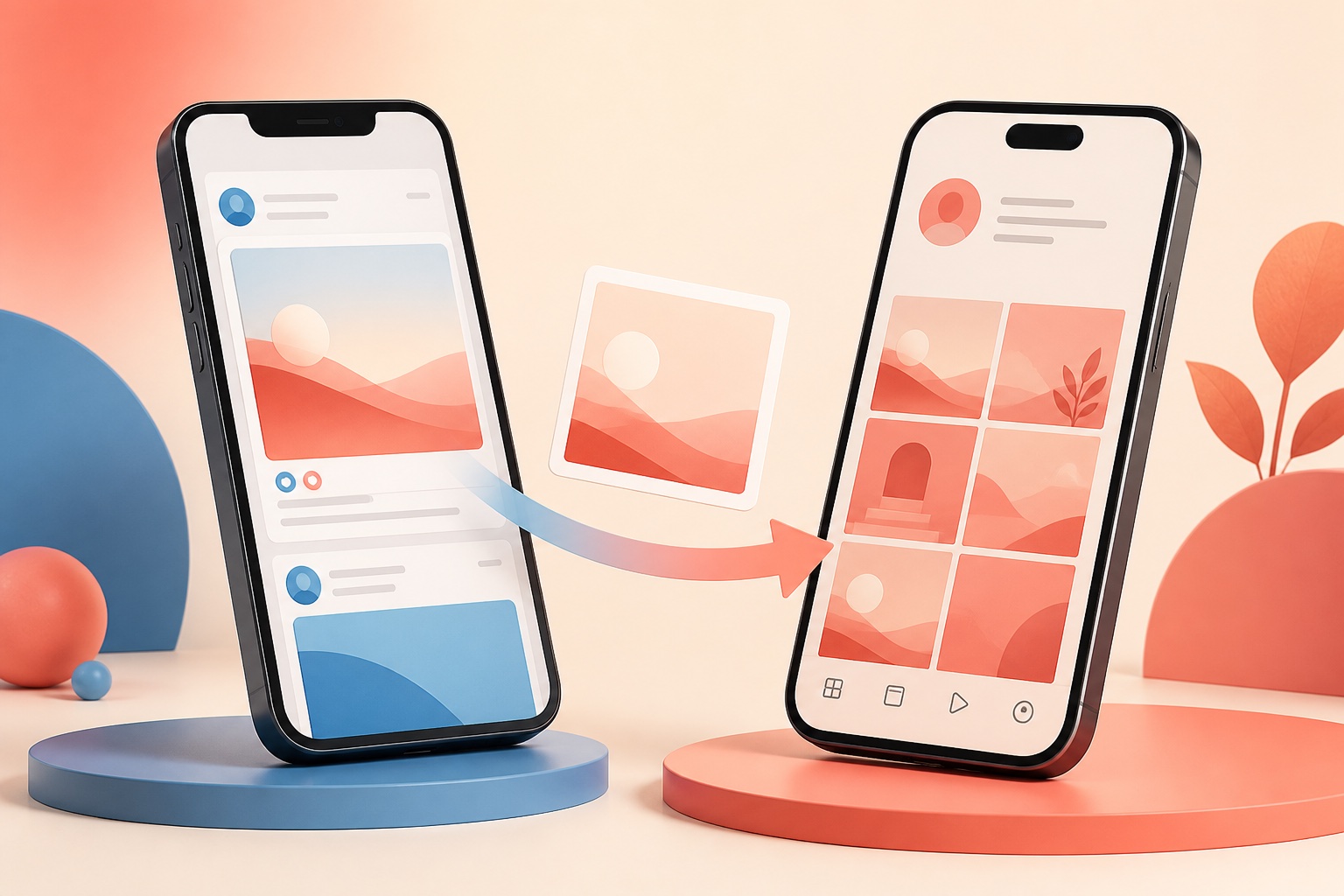
Facebook can share eligible content to Instagram when the correct accounts are connected through Accounts Center or an approved Facebook Page–Instagram professional account relationship. The cross-post option may appear in the Facebook composer or under Sharing across profiles. Not every Facebook post can be converted into an Instagram post, and an old post usually cannot be retroactively cross-posted with the same flexibility as a new creation.
Understand the available cross-posting routes
Personal profiles generally manage connected experiences through Accounts Center. This can enable sharing from Facebook to Instagram and from Instagram to Facebook, but each direction and content type may have separate controls.
Professional accounts can also connect an Instagram account to a Facebook Page. That relationship can support publishing tools, business inboxes, advertising, permissions, and Meta Business Suite workflows depending on account eligibility and assigned access.
A one-time composer toggle shares a particular eligible item. Automatic sharing applies to future supported posts, Stories, or Reels until you change the setting. Review the destination every time a campaign, Page, or staff role changes.
Copying a public Facebook post link into Instagram is not the same as cross-posting. Instagram captions do not make ordinary pasted URLs clickable, and the Facebook audience may not match the Instagram audience.
Connect Facebook and Instagram in Accounts Center
Open Facebook or Instagram settings and enter Accounts Center. Choose Accounts and add the missing Facebook or Instagram profile through the official sign-in flow.
Verify names, profile photos, and usernames before confirming. People who manage multiple clients, Pages, or test accounts should avoid accepting whichever session appears automatically in the authorization screen.
Open Sharing across profiles, select Facebook as the source and the intended Instagram account as the destination, then review the available controls for posts, Stories, and Reels.
Enable only the sharing types you need. Automatic sharing can publish personal, duplicate, or time-sensitive material to the wrong audience if it remains enabled after the original campaign ends.
Share a new Facebook post to Instagram
Start a new Facebook post and choose supported media. Instagram is primarily visual, so a photo, compatible video, or Reel is more likely to cross-post correctly than a text-only Facebook update or a format built around Facebook-specific features.
Look for the Instagram sharing control in the Facebook composer. Select the correct destination, review any notices about unsupported elements, and inspect the crop, caption, tags, music, audience, and accessibility information.
Publish only after checking both previews. A Facebook landscape image can crop awkwardly in Instagram's grid, and links, feelings, activities, backgrounds, donations, product features, or other Facebook-specific components may not transfer.
After publishing, open both platforms and confirm that the post appeared, the caption is complete, the media is sharp, the audience is appropriate, and any required disclosures or paid-partnership labels are present.
Share from a Facebook Page or Meta Business Suite
Connect the Instagram professional account to the correct Facebook Page and confirm that your Facebook profile has the access required to create content for that Page.
Meta Business Suite may allow a post or Reel to be prepared for Facebook and Instagram together. Customize each platform's copy, crop, call to action, tags, and timing instead of assuming one asset will perform identically everywhere.
For teams, assign official Page and business permissions rather than sharing passwords. Record who controls Accounts Center, the Page, business portfolio, ad account, Instagram recovery email, and two-factor authentication.
Scheduled content has its own eligibility and limitations. Meta notes that connection, Page, or account-type changes can prevent scheduled cross-posting, so avoid restructuring accounts immediately before an important launch.
Why some Facebook posts cannot be shared
Instagram requires visual media for standard feed posts, while Facebook supports text-only updates and many platform-specific attachments. Unsupported source formats cannot always be translated into a valid Instagram post.
Differences in aspect ratio, video length, file encoding, music rights, interactive stickers, audience settings, branded-content tools, product tags, fundraisers, and collaborative features can block or alter a cross-post.
A post already published on Facebook may not offer the same Instagram destination control afterward. When appropriate, use the original media to create a new Instagram-native post instead of downloading a compressed Facebook copy.
Only republish content you own or are authorized to use. Public visibility, purchase, credit, or a disclaimer does not automatically grant copyright permission for cross-platform distribution.
Troubleshoot a missing or failed Instagram share
Update Facebook and Instagram, confirm both accounts appear in Accounts Center, and recheck Sharing across profiles. For a Page, verify the Page–Instagram connection and your current Page access.
Resolve security checkpoints, disabled features, account-status restrictions, expired sessions, and two-factor prompts before trying again. Repeated rapid publishing attempts can create duplicates or additional temporary limits.
Remove unsupported elements from a test post and try a simple original photo with a short caption. If the basic post works, add features back one at a time to identify the incompatible component.
Use Help & support > Report a problem when a supported workflow repeatedly fails. Include the account names, time, device, app versions, screenshots, and exact error without sending passwords or authentication codes.
Audience, duplicates, and measurement
Facebook friends, Page followers, and Instagram followers are different audiences. Review privacy on each destination rather than assuming that the Facebook audience selector will map perfectly to Instagram.
Avoid automatic duplicate publishing when followers overlap heavily unless the content serves a clear purpose on both platforms. Adapt hooks, caption length, hashtags, cover frames, and calls to action for each environment.
Measure the platforms separately using their native insights. Compare reach, watch time, saves, shares, profile actions, and meaningful comments rather than judging success from a combined like total.
If you disconnect accounts later, previously published content usually remains on its destination. Delete or edit each copy on the platform where it appears, and document any compliance-sensitive changes.
Frequently asked questions
Can I share a text-only Facebook post to Instagram?
Usually not as a standard Instagram feed post because Instagram requires visual media. Recreate the idea with an original image or video.
Can I share an old Facebook post to Instagram?
Older posts may not offer the same cross-post controls. Using the original media to create an Instagram-native post is often more reliable.
Why is the Instagram toggle missing in Facebook?
Check Accounts Center, Sharing across profiles, app updates, Page access, account status, and whether the post format is supported.
Will the Facebook and Instagram audiences be identical?
No. The services have different relationship and audience systems, so verify privacy on both copies.
Does unlinking the accounts remove past cross-posts?
No. Existing destination posts generally remain until you remove them on that platform.
https://www.facebook.com/help/943858526073065
https://www.facebook.com/help/search/?q=share%20facebook%20posts%20instagram
https://www.facebook.com/help/354736791367645/
This independent guide is not affiliated with or endorsed by Instagram, Meta, TikTok, Spotify, Apple, or Google.