How to Link Instagram to Facebook
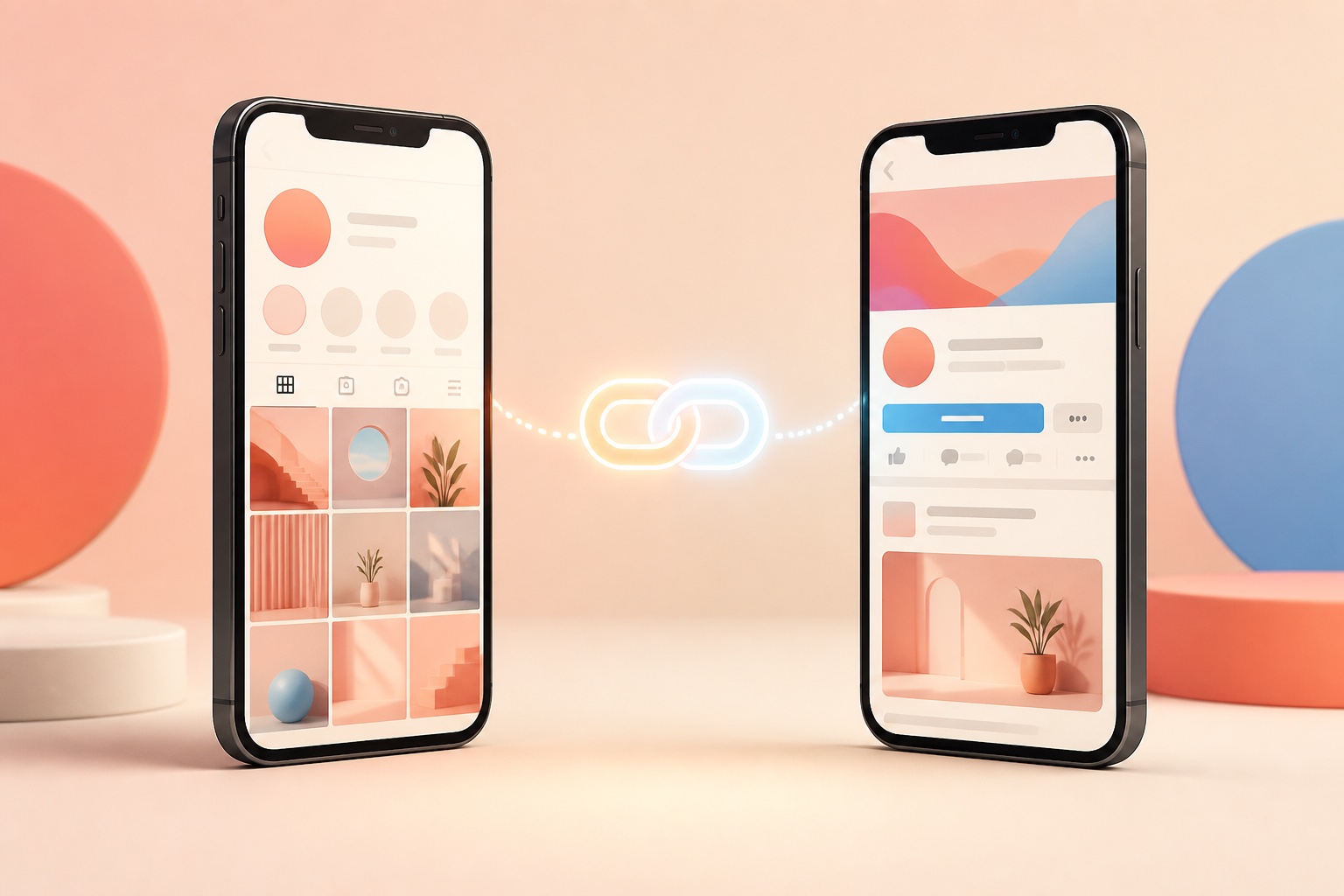
Instagram and Facebook connections are managed mainly through Meta Accounts Center. Adding both accounts enables selected connected experiences such as sharing posts and Stories, simplified login, and synced profile information. Business users may also connect an Instagram professional account to a Facebook Page.
Add Facebook to Instagram Accounts Center
Open Instagram, go to your profile, and tap the three-line menu.
Open Accounts Center, choose Accounts, and select Add accounts.
Sign in to the intended Facebook account, review the information shown, and confirm. Do not continue if a shared device displays someone else's profile.
Enable sharing across profiles
In Accounts Center, open Sharing across profiles and choose the source Instagram account and destination Facebook profile.
Select whether posts, Stories, or Reels should share automatically. Options can differ by account type and region.
Test with one non-sensitive post and confirm its audience on Facebook; privacy settings do not always map identically between platforms.
Connect an Instagram professional account to a Facebook Page
Make sure you have the required Facebook Page access and are signed into the correct Facebook account.
From Instagram professional settings or the Facebook Page's linked-account settings, choose the intended Page and complete the prompts.
A Page connection can support business tools, inbox workflows, ads, and cross-posting, but availability depends on permissions and account status.
Choose what to sync
Accounts Center can offer profile information syncing and login-related connected experiences in addition to sharing.
Enable only the functions you need. Shared profile details can cause changes on one service to appear on the other.
Review contact information, audience settings, and two-factor authentication after connecting.
Troubleshoot linking problems
Update both apps and verify that neither account has a security checkpoint or restriction.
Remove an obsolete connection only after confirming which profile or Page it belongs to, then reconnect through Accounts Center.
For a Page, verify your access level. Never pay a third party or disclose a verification code to link accounts.
Frequently asked questions
Does linking make Instagram posts public on Facebook?
Not automatically. Sharing and audience controls must be configured, but you should verify the audience on a test post.
Can I connect Instagram to a Facebook Page?
Eligible professional accounts can connect to a Page when the user has the required Page access.
Do the usernames need to match?
No, but synced profile information may have its own eligibility and availability rules.
https://www.facebook.com/help/943858526073065
https://www.facebook.com/help/instagram
https://www.facebook.com/business/help
This independent guide is not affiliated with or endorsed by Instagram, Meta, Apple, or Google.